Open Today Sales: 9 AM-7 PMOpen Today Service: 7:30 AM-5:30 PMOpen Today Parts: 7:30 AM-5:30 PM



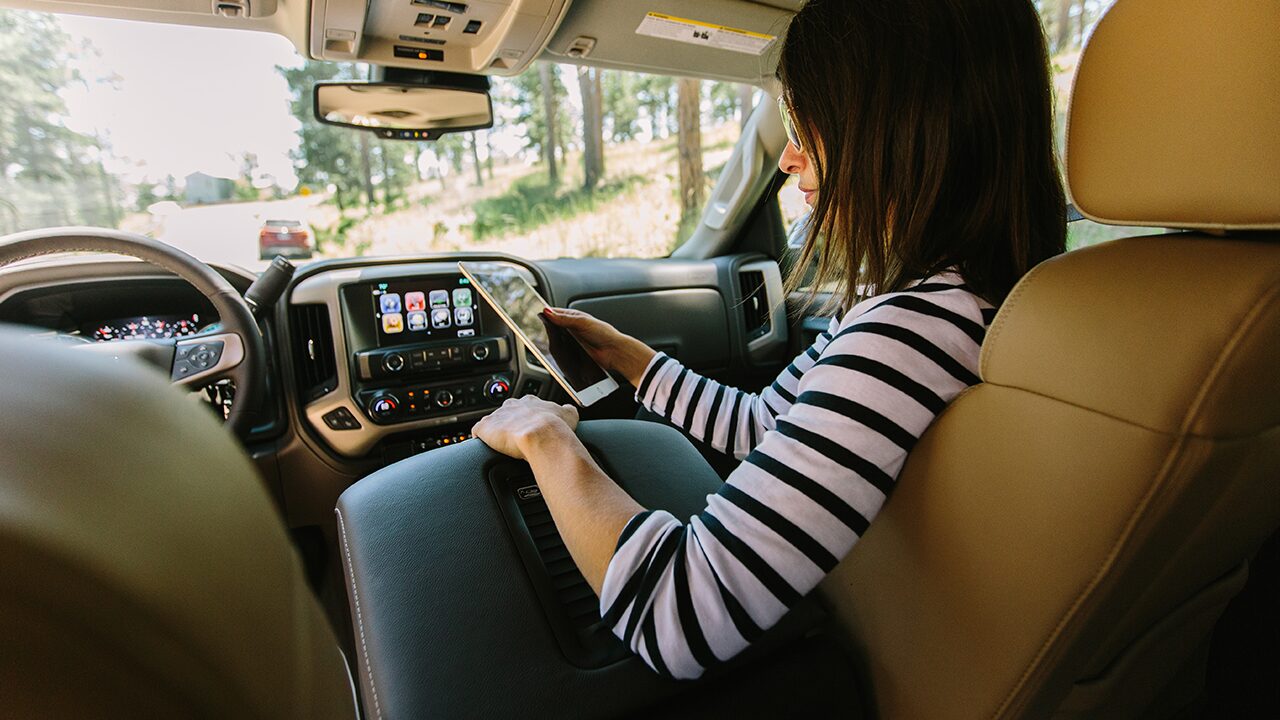
There are lots of perks that come with securing the keys to a new GMC vehicle in Rome! For starters, you’ll gain access to a wide range of advanced in-vehicle technology systems, including GMC IntelliLink. Through IntelliLink, you can sync your smartphone with your touchscreen infotainment display via Bluetooth® wireless connectivity, allowing for hands-free phone calls and messaging, audio streaming, and more. But if your GMC IntelliLink system ever malfunctions, what should you do? Welborn GMC Of Cartersville provides step-by-step instructions on how to reset GMC IntelliLink below!
IntelliLink is GMC’s premier infotainment system, first introduced to its truck and SUV lineup on the 2012 GMC Terrain. Almost a decade later, every new GMC comes standard with an infotainment system and a touchscreen display. Using IntelliLink and the touchscreen display, you can access all your favorite smartphone apps, streaming services, contacts, and more while on the go in Acworth and Canton.
Before you move forward with resetting your entertainment system, we recommend checking for software updates. If you missed a software update or a GMC IntelliLink Navigation upgrade, it could be due to any issues you may be experiencing.
If there is a GMC IntelliLink update available, it will download. Once downloaded, you’ll be prompted with on-screen steps to install it.
If you’re experiencing issues with your entertainment system and there are no software updates available, you can get GMC IntelliLink support by calling GMC’s assistance line at 1-800-462-8782. However, resetting the GMC IntelliLink system on your own is pretty simple! Here are the steps to follow:
Note: Before you restore GMC IntelliLink to factory settings, know that the personal settings you’ve enabled will be erased, and you will be starting with a fresh, unprogrammed entertainment system. If there are GMC IntelliLink apps you’ve downloaded, they may be removed from your infotainment screen.
Are you still having difficulty resetting GMC IntelliLink? The GMC IntelliLink support will be there to guide you through the process. You can also visit the service department at Welborn GMC Of Cartersville, where you will be taken care of. Our factory-trained technicians will answer any questions you have and get your IntelliLink reset and working again! For additional information on IntelliLink, you can refer to your owner’s manual. Have any questions? Contact us today by phone or online!
Welborn GMC of Cartersville – Why the 2027 GMC Acadia’s Three-Row Space Makes Sense for Dallas, GA Families For families around Dallas, GA, a three-row SUV needs to do more than simply add extra seats. It has to feel easy to live with on busy school mornings, comfortable on drives toward Hiram or Cartersville, practical…
Welborn GMC of Cartersville – Terrain vs. Acadia vs. Yukon – Which GMC SUV Fits Your Life in Cartersville, GA? Shopping for a new GMC SUV in Cartersville, GA often starts with one practical question: how much space do you actually need? A commuter heading down I-75 toward Kennesaw may want something easy to park…
Welborn GMC of Cartersville – Which GMC Acadia Trim Is Best for Families in Cartersville, GA? Shopping for a three-row SUV in Cartersville, GA usually starts with a practical question: which trim actually fits daily life? For many local drivers, the GMC Acadia stands out because it brings together seating for up to eight, strong…